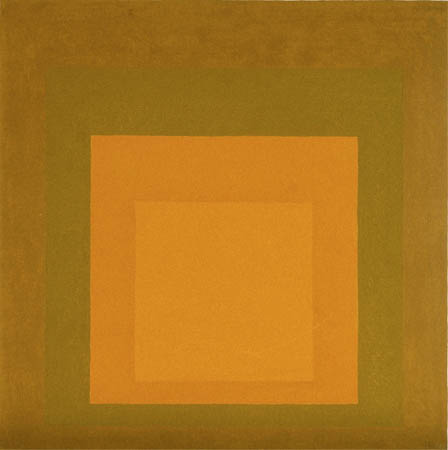
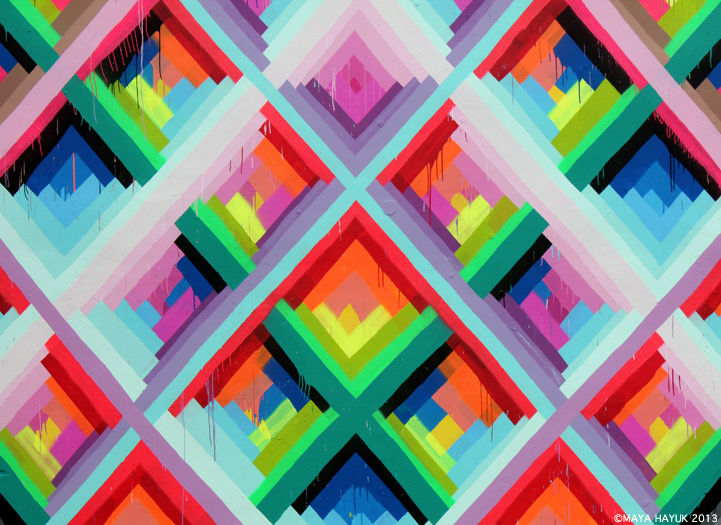
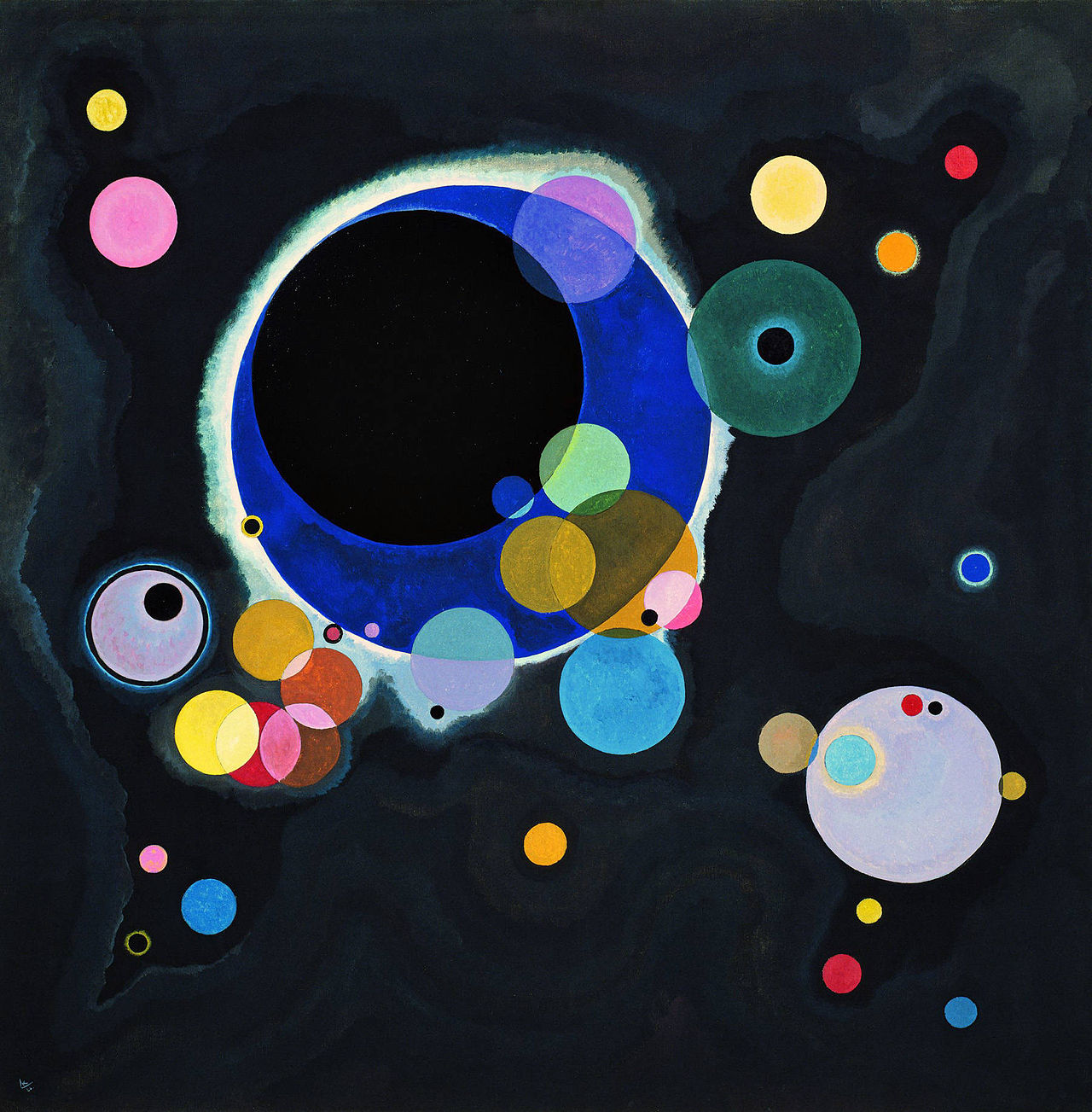
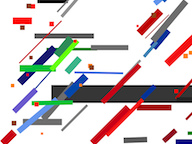
These are works by artists Josef Albers, Maya Hayuk, Vassily Kandinsky, Atta Kwami, Kazimir Malevich, Alma Thomas, and Theo van Doesburg. The styles are different, but all of them are based on polygons or circles.
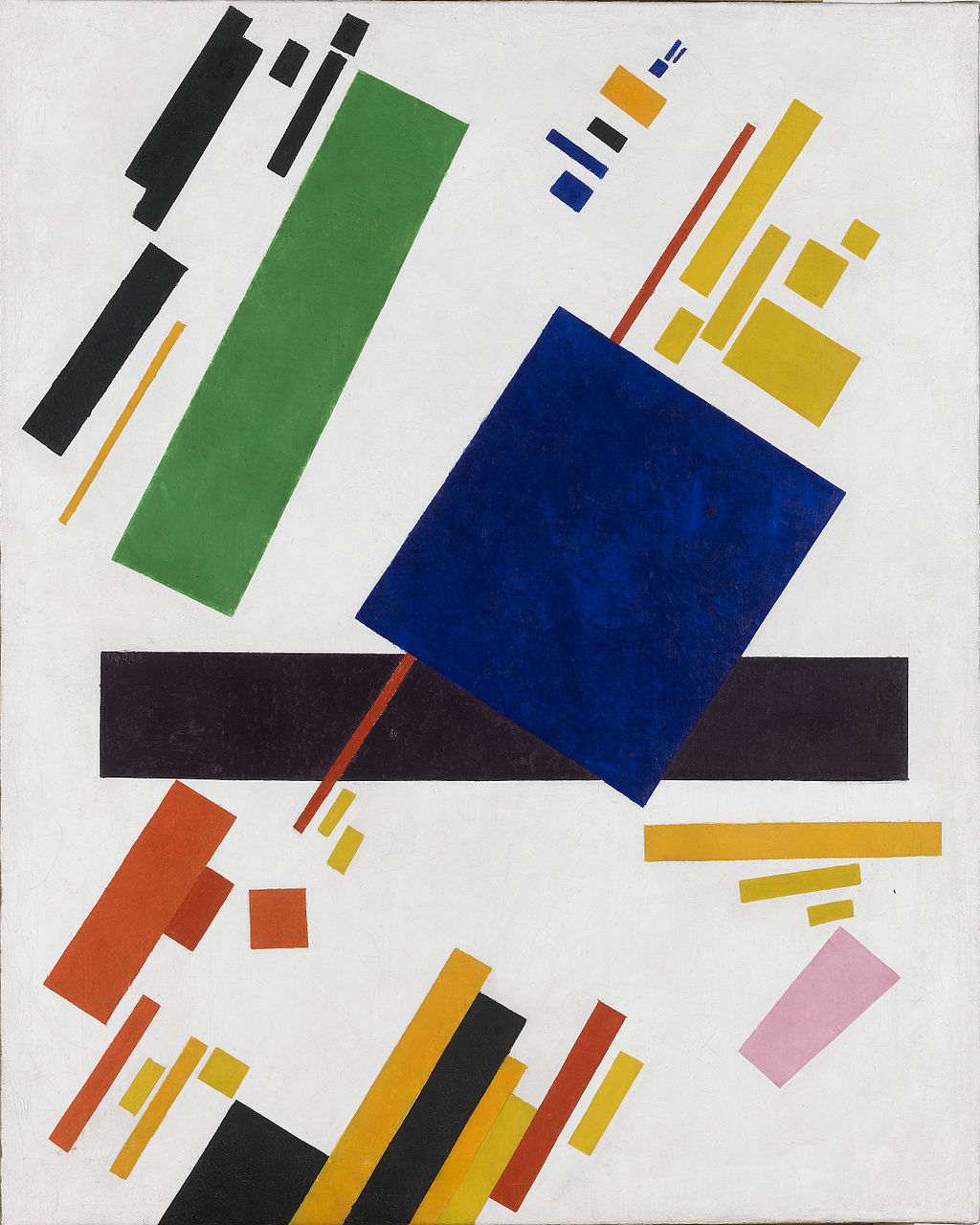
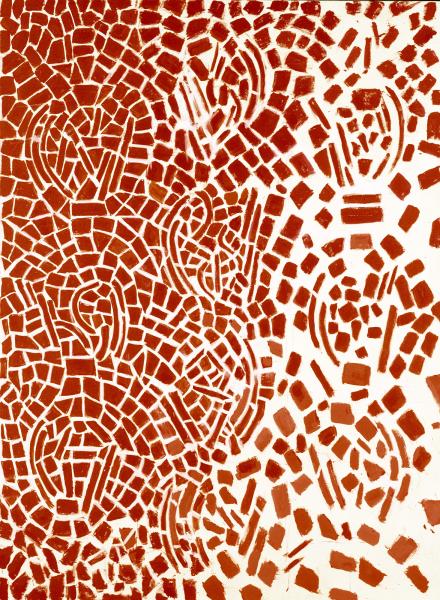
.jpg "art by van Doesburg")
Click for art credits.
- Josef Albers, "Homage to the Square," 1965. More: Albers Foundation, smarthistory.org
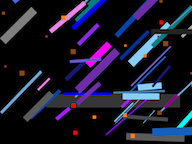
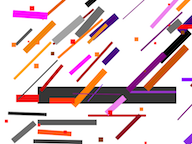
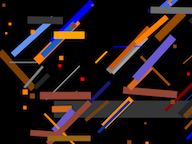
- Maya Hayuk, "Chemtrails Miami," 2013. More: mayahayuk.com, Wikipedia
- Vassily Kandinsky, "Several Circles," 1926. More: wassilykandinsky.net
- Atta Kwami, "Bobbo," 2012. More: attakwami.com
- Kazimir Malevich, "Suprematist Composition," 1915. More: kazimir-malevich.org, Wikipedia
- Alma Thomas, "Untitled (Music Series)," 1978. Copyright Smithsonian American Art Museum. More: wikiart.org, Wikipedia
- Theo van Doesburg, "Composition VII (the three graces)," 1917. More: wikiart.org, Wikipedia
In this lab, you'll draw polygons so you can create your own art: 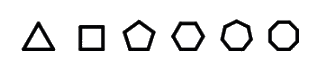
On this page, you will explore the basics of drawing a shape in Snap! by using the repeat block to loop through the same code multiple times.
: Algorithm and
Pseudocode
AAP-2.A.1, AAP-2.A.2, AAP-2.A.3
An algorithm is a sequence of steps that are usually performed by a computer. The algorithm doesn't have to be written in any particular programming language or even in a programming language at all; you can write your algorithm in English or any other human language. Some people call an algorithm written in human language pseudocode. Once you know the steps that the computer will take, you can code your algorithm in the programming language of your choice.
What's the purpose of "pseudocode"? Why write an algorithm vaguely in English when you could write it precisely in Snap!? If you were programming in a punctuation-heavy language, designing your program in pseudocode would help you focus on the important ideas instead of on details like quotation marks and semicolons. But pseudocode isn't as necessary with a language like Snap!, and pseudocode can make it easy for you to fall into wishful thinking about what the computer is capable of (such as writing "Pick tomorrow's winning lottery numbers" or "Here's the melody; write the harmony").

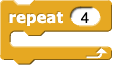
 Describe what this algorithm will make the sprite do:
.png "repeat (4) (move (100), turn clockwise (90))")
 , and then click your script to run it again.
 Analyze why that script does what it does.
 Compare your work with another pair. If your script behaves differently from theirs, check both.
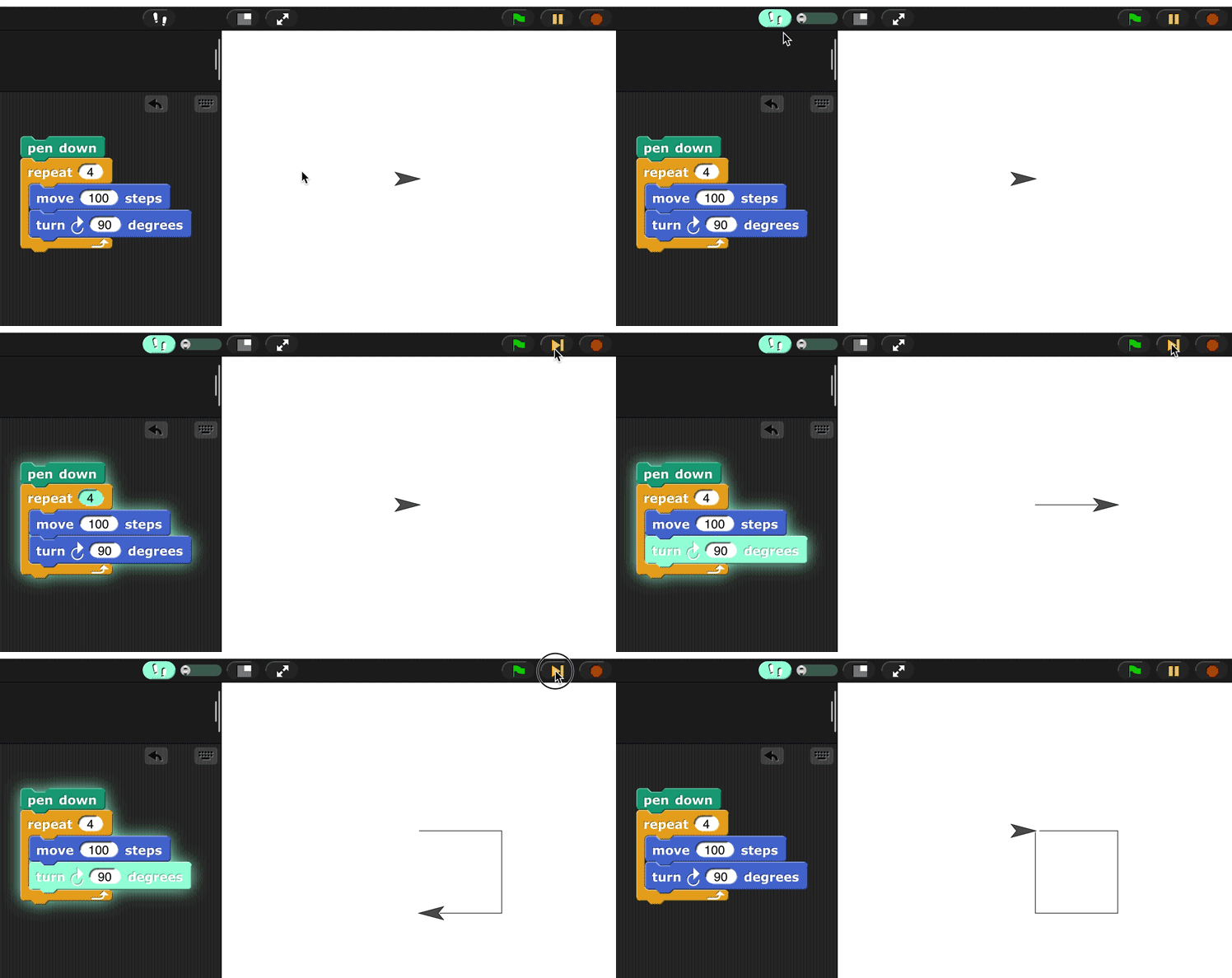
 ), and adjust the slider to control the stepping speed. When you run your code, the sprite will slowly execute each step of the code and highlight it in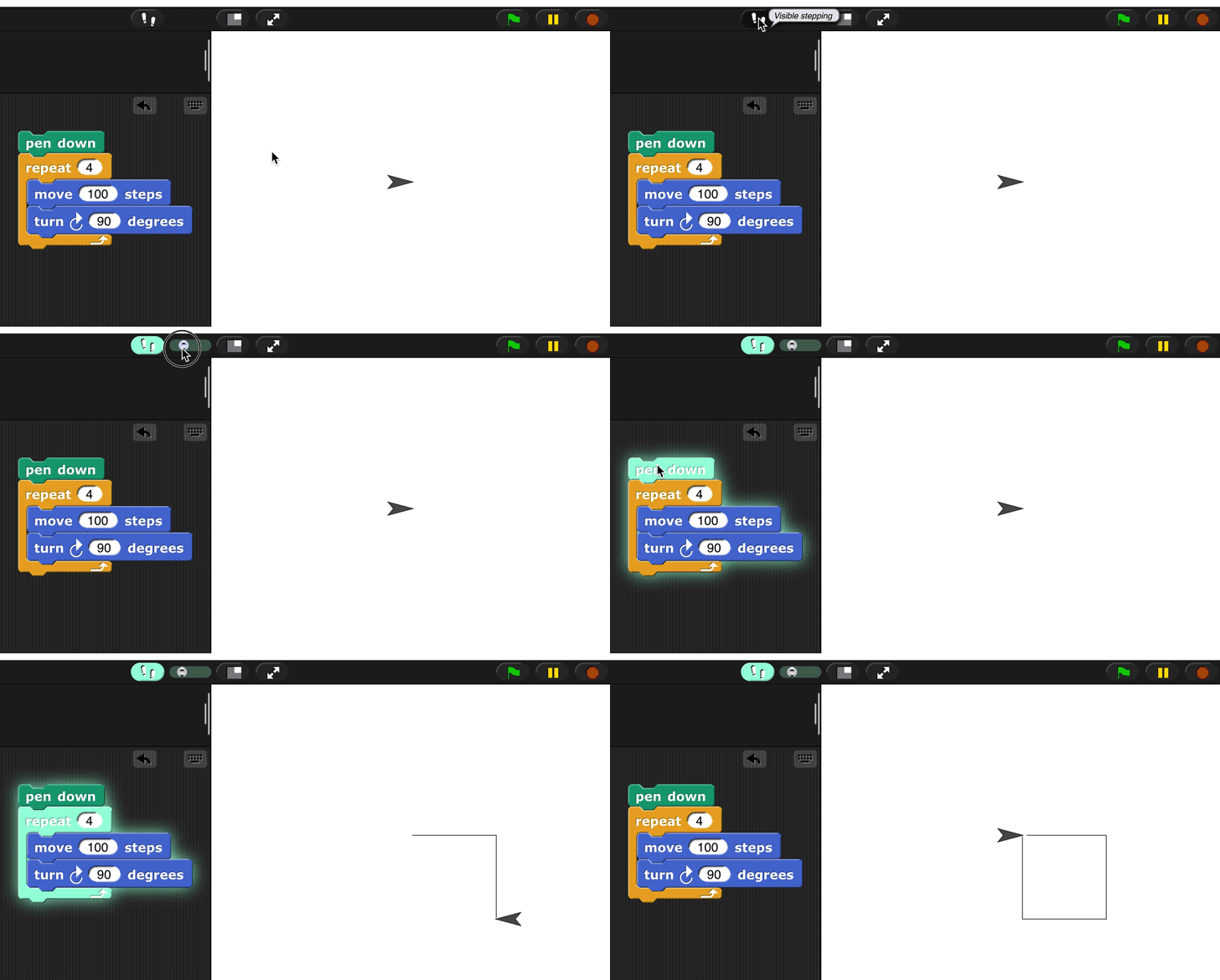
 ) to see what happens at each step of your code.
 Switch who is sitting at the keyboard. Then experiment:
 and you can reset the direction it's pointing with
  .
. block in the green Pen palette.
 block.
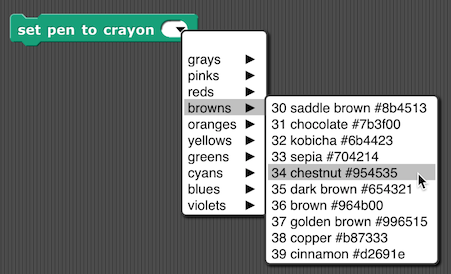
 to experiment with the pen color.
 . Does it leave a trace as it moves?

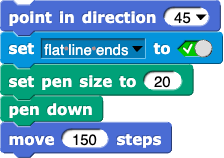
 . Just click once in the hexagonal slot to get True (the green check box). If you're not sure what difference the "flat line ends" makes, try clicking the hexagonal slot again to run the script with that option False. And of course you can change all the numbers, or have your program pick random numbers.
 to find out if the point behind the sprite's rotation center is black.